
Set up mail import
HerdPrint connects directly to the mailbox you choose. Mail account settings stay in the local app container, credentials are stored in macOS Keychain, and only attachments you select are downloaded. HerdPrint does not upload mail or invoice files to ASUGAR.APP.
Before you start
- Use macOS 14 or later with HerdPrint installed.
- Use an app password or authorization code when your provider offers one. It is usually different from your normal mailbox password.
- Enable IMAP at the provider before testing the connection.
Add an account in HerdPrint
- Open HerdPrint Settings and choose Mail Accounts, or choose Import from Email and then Add Email.
- Select your provider: QQ Mail, NetEase Mail, Gmail, or Other Email for Custom IMAP.
- Enter your complete email address and the provider’s app password or authorization code.
- Click Test Connection. After the connection is verified, click Connect.
- Search a date range, select only the invoice attachments you need, and choose Import Attachments.
QQ Mail
- Sign in to QQ Mail.
- On a computer, click the avatar in the upper-right corner and open Settings → Account and Security → Security Settings.
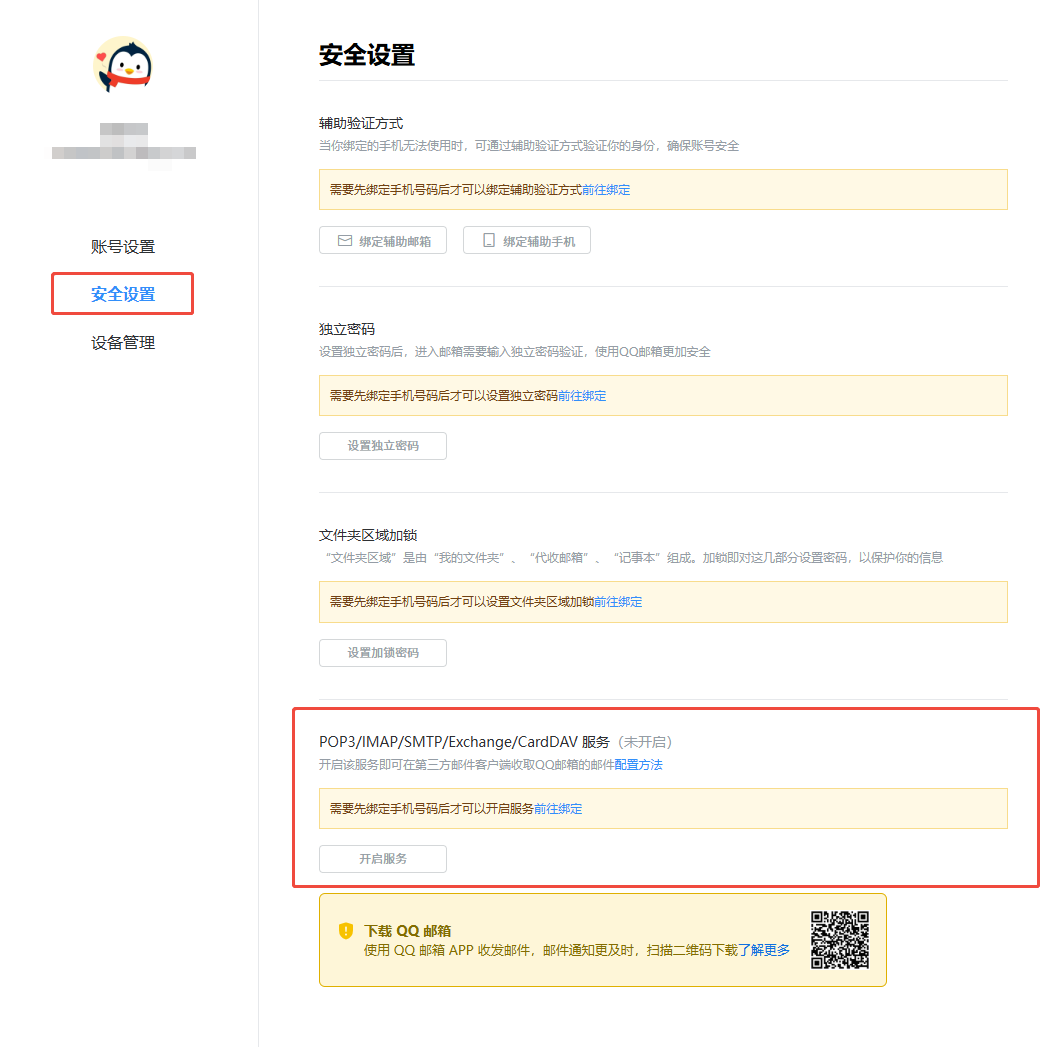
- Bind a phone number first, then choose Enable Service to enable the service agreement.
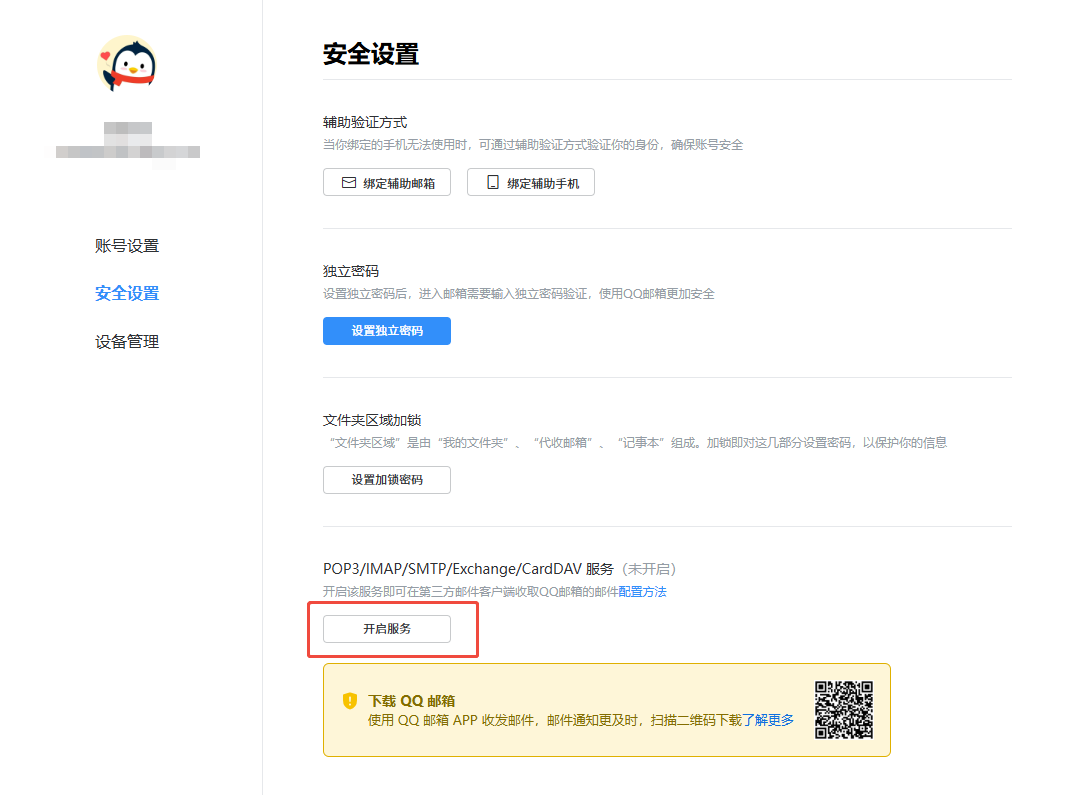
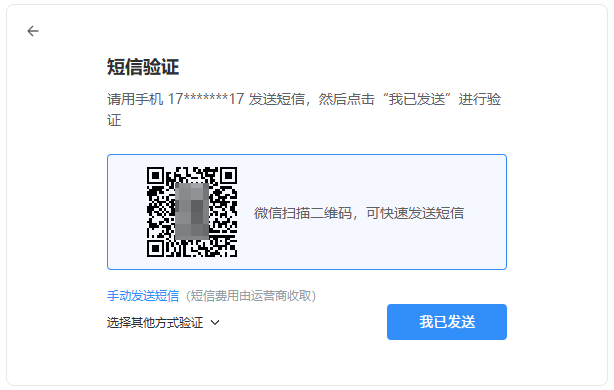
- Complete the identity verification shown by QQ Mail.
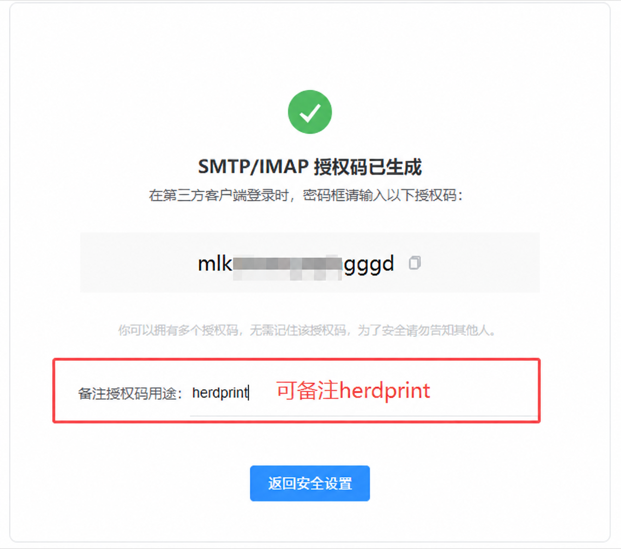
- After verification, QQ Mail generates a 16-character authorization code made of uppercase letters. Copy it, then select QQ Mail in HerdPrint and enter the complete QQ email address and authorization code.
The preset uses:
| Server | Port | Security |
|---|---|---|
imap.qq.com | 993 | SSL/TLS |
Do not enter your ordinary QQ account password.
NetEase Mail
The NetEase preset supports 163.com, 126.com, and yeah.net addresses.
- Sign in to NetEase Mail.
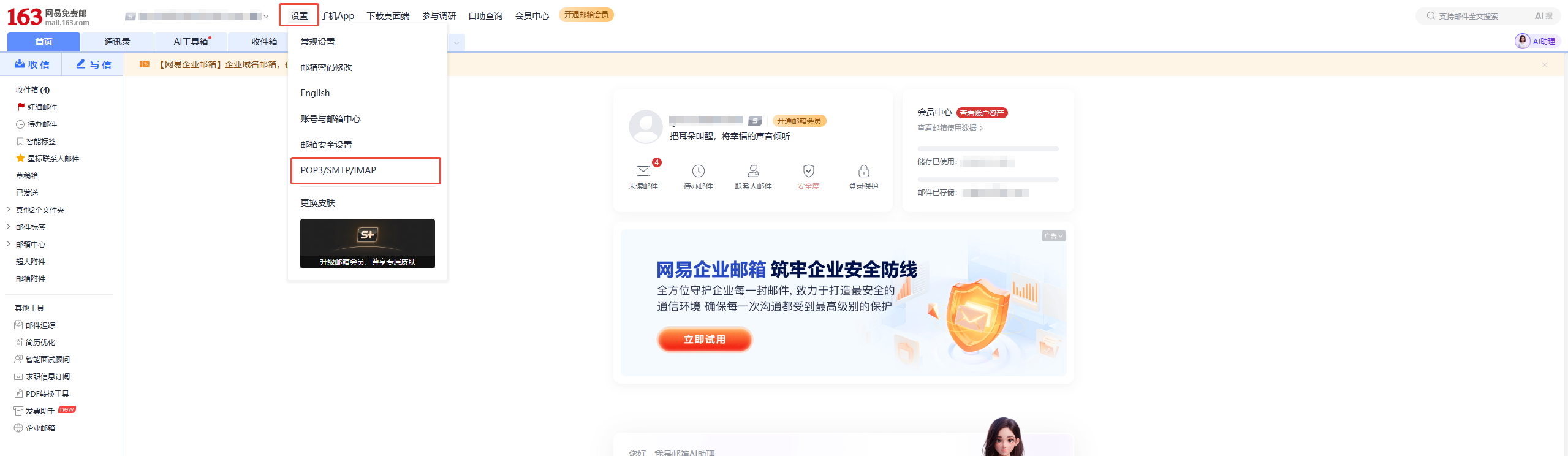
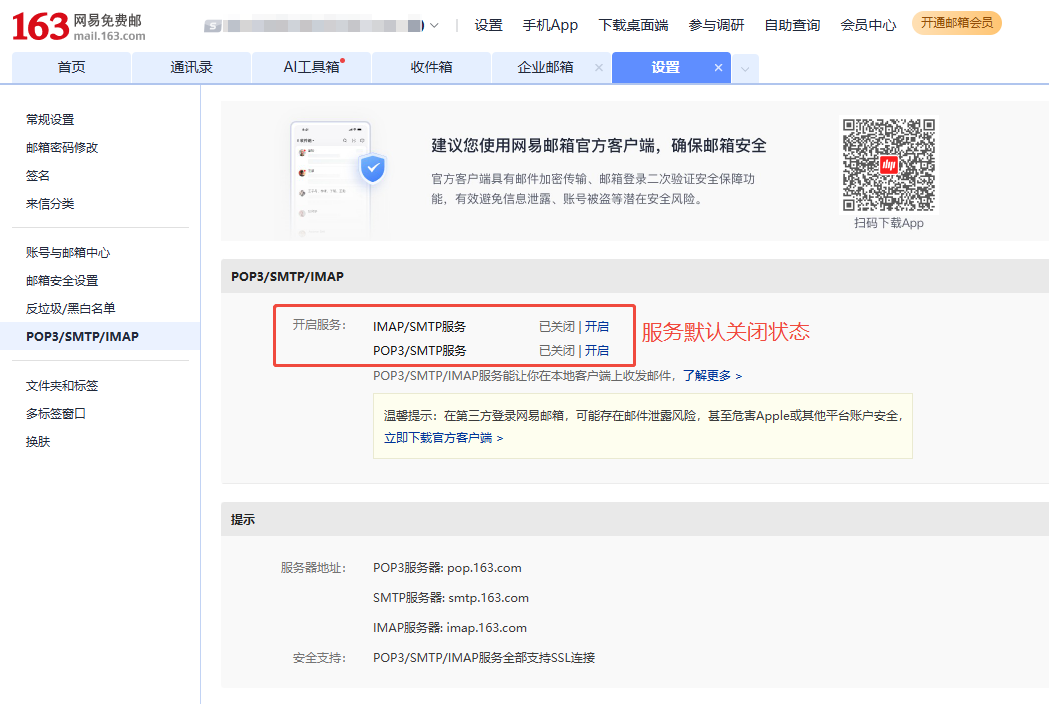
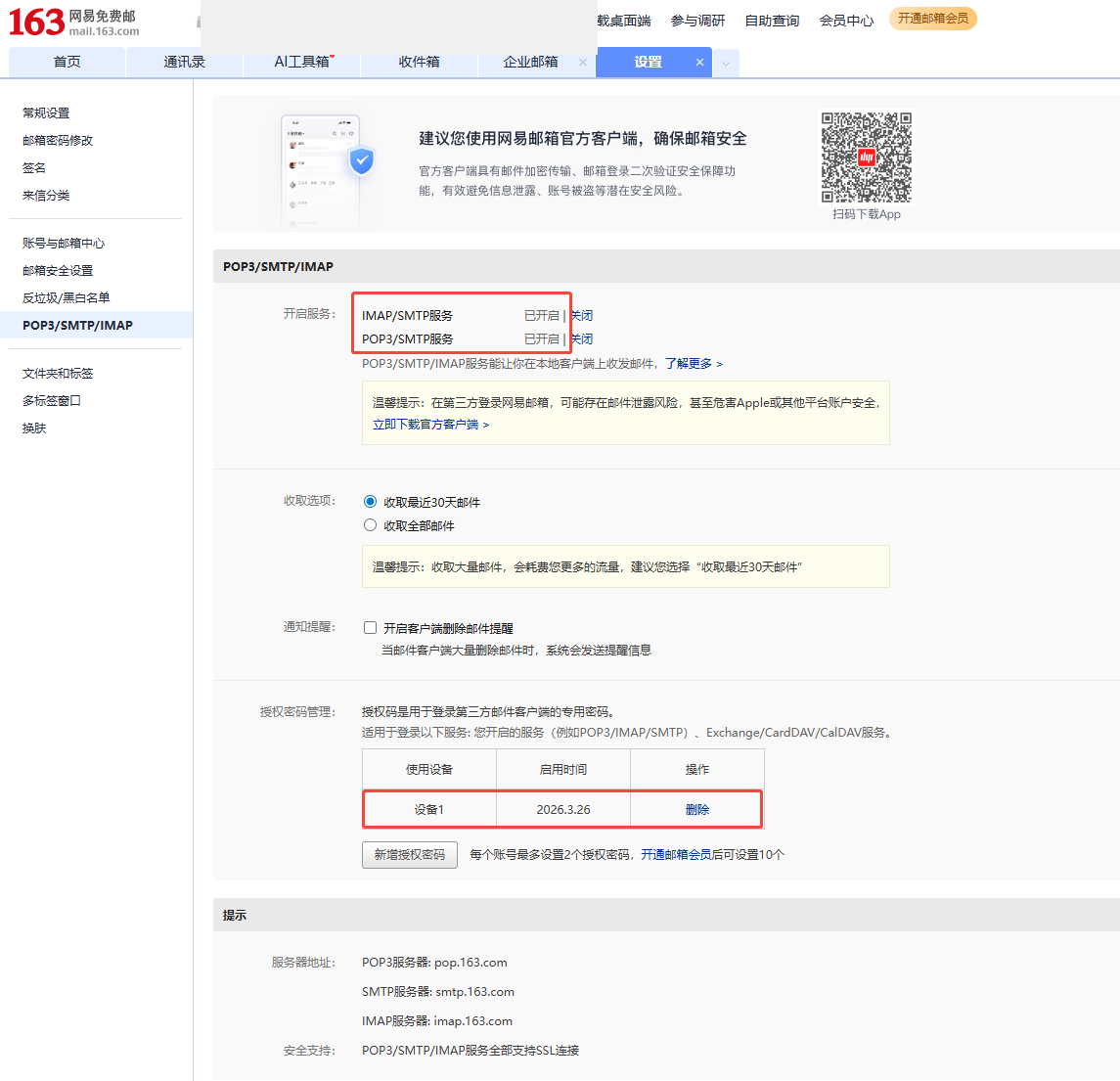
- Open Settings and choose POP3/SMTP/IMAP.
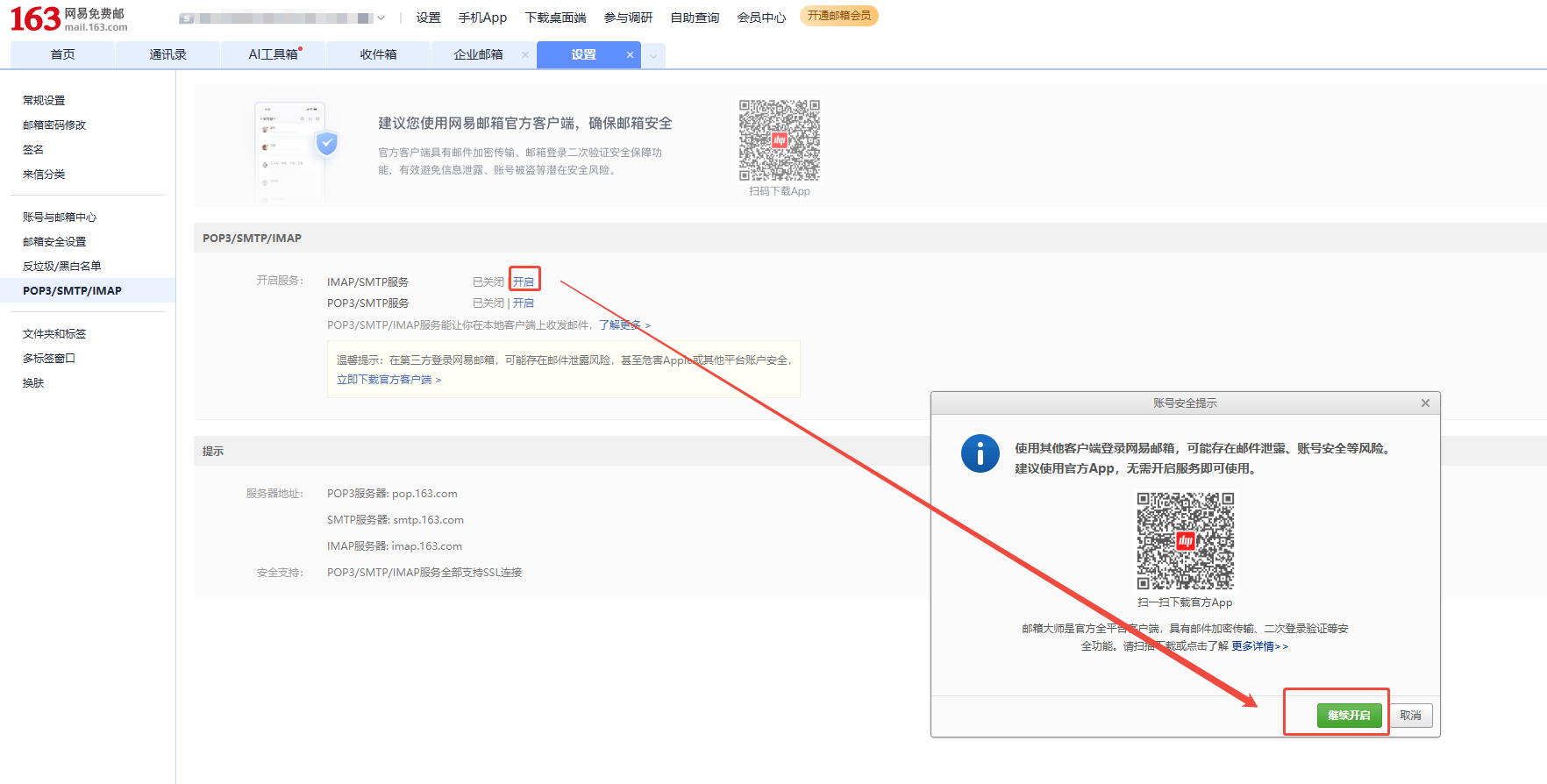
- Enable the IMAP service. Complete the security confirmation if NetEase asks for it.
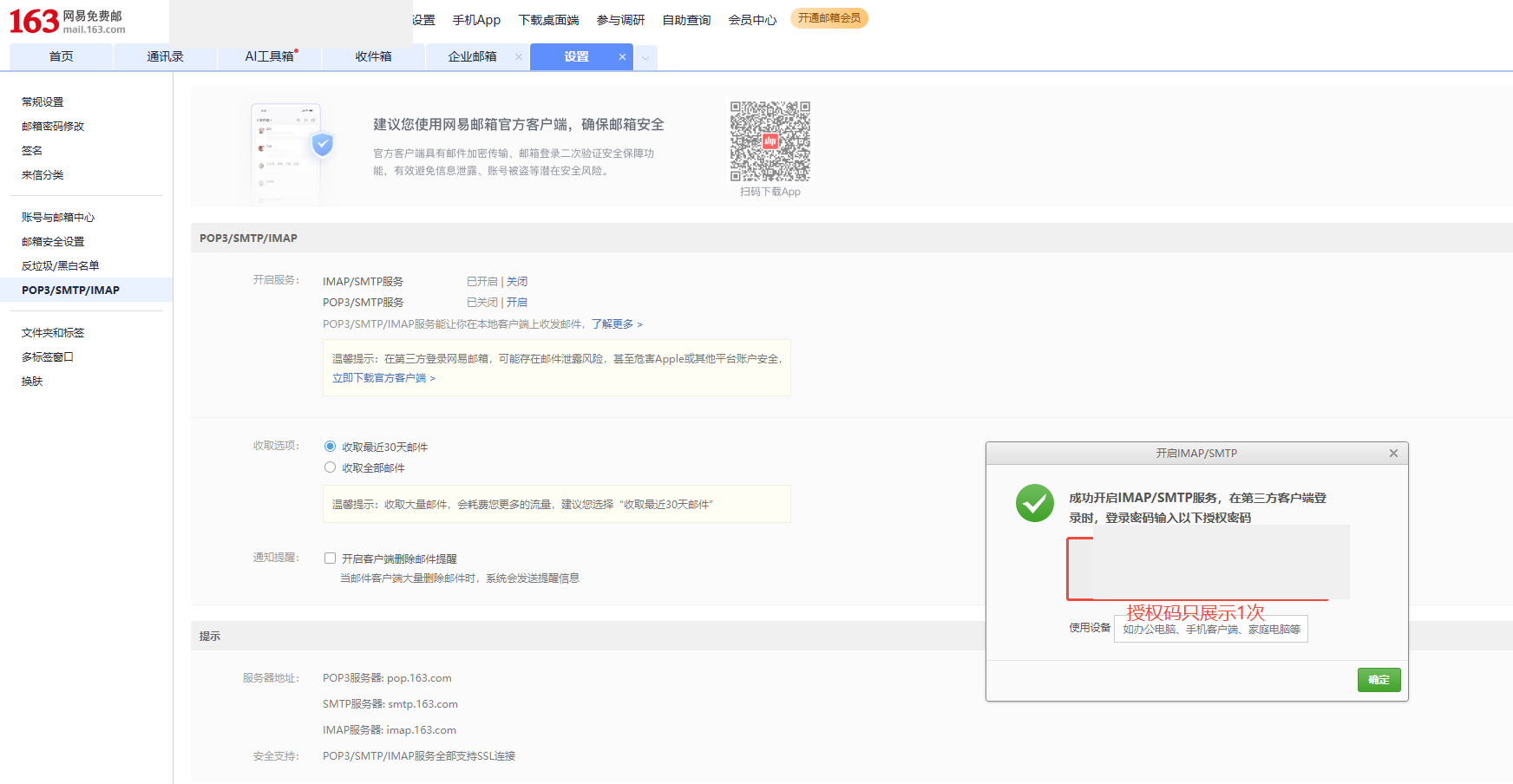
- Copy the authorization code shown after the service is enabled.
- Return to HerdPrint, select NetEase Mail, and enter the complete email address and authorization code.
The app fills the matching imap.<domain> server on port 993 with SSL/TLS. 188.net is not included in automatic configuration because its IMAP host has not been verified for this release; use Other Email with confirmed server settings if needed.
Gmail
Gmail’s IMAP connection in the current HerdPrint release uses an app password. Google accounts generally need 2-Step Verification before an app password can be created.
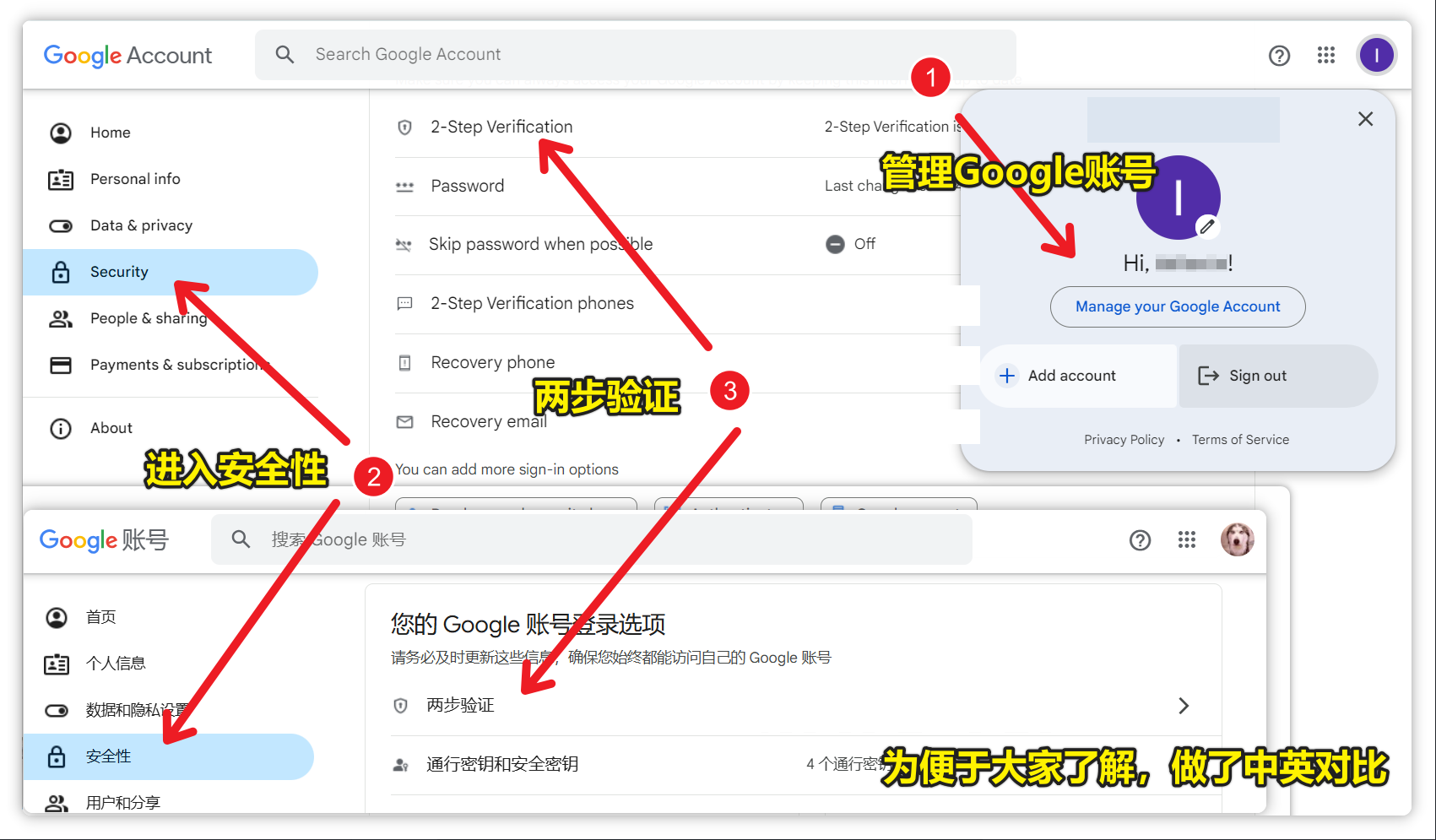
- Sign in to your Google Account security settings.
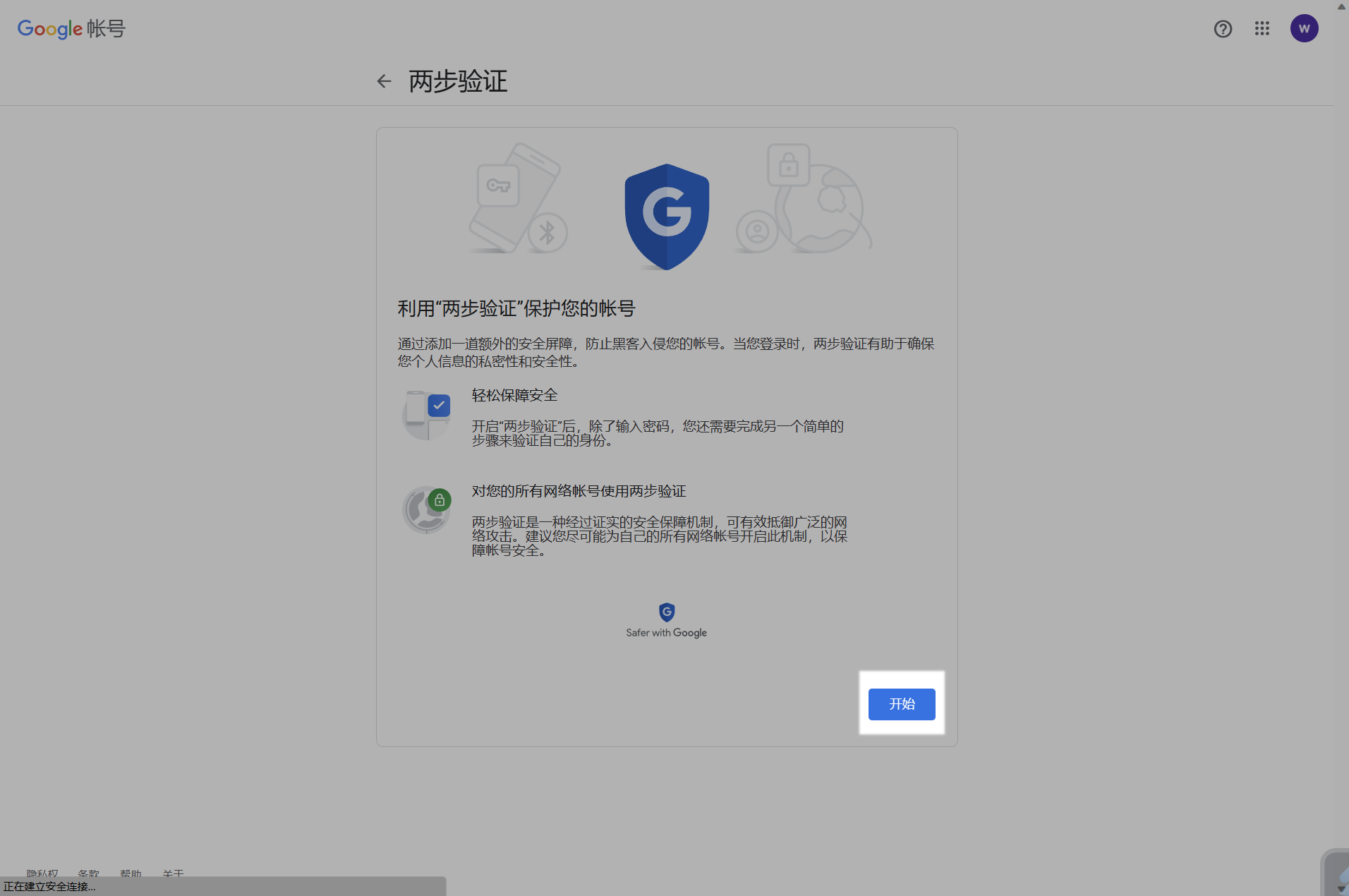
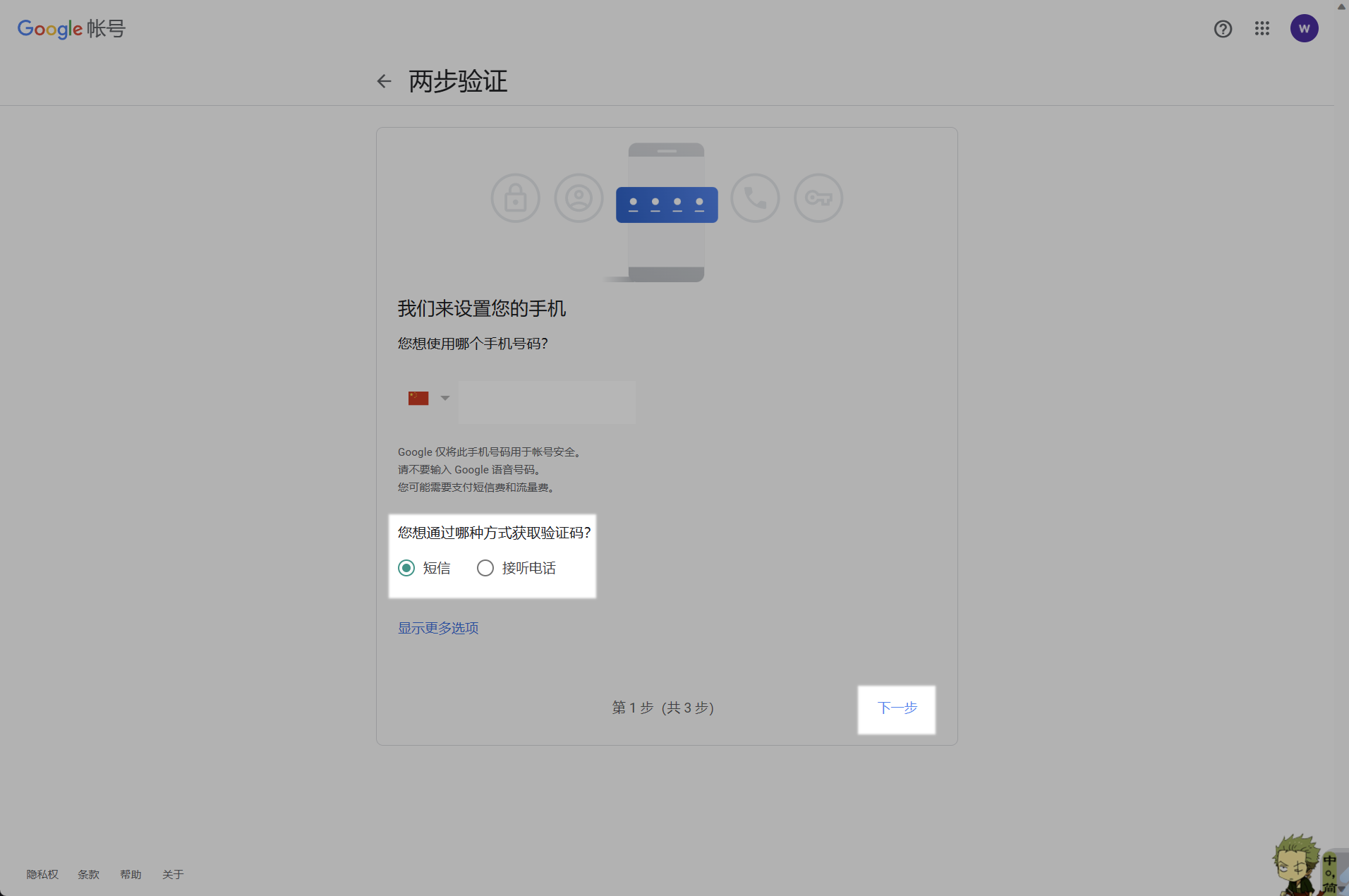
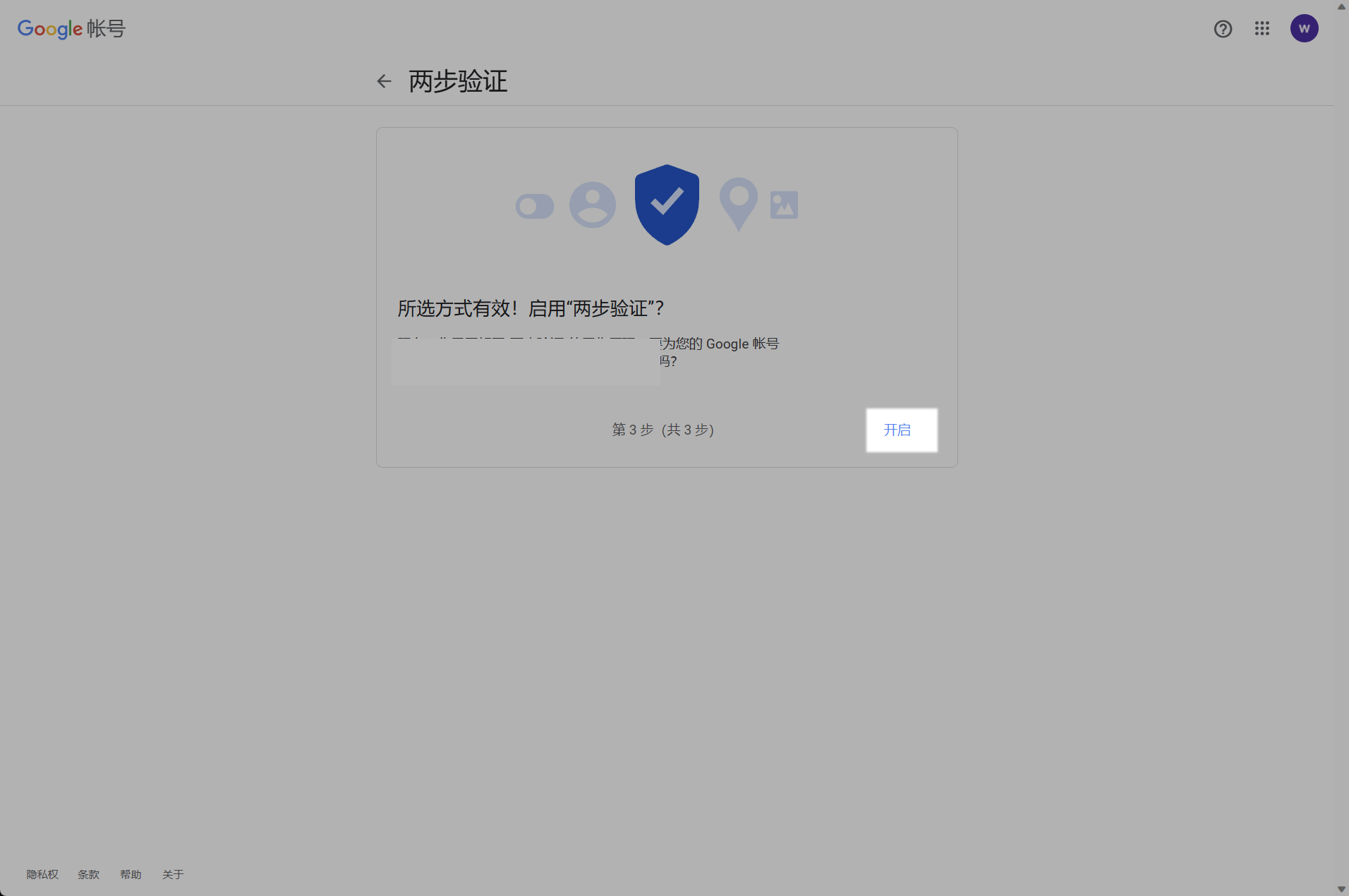
- Open 2-Step Verification, choose Get started, and finish Google’s verification steps.
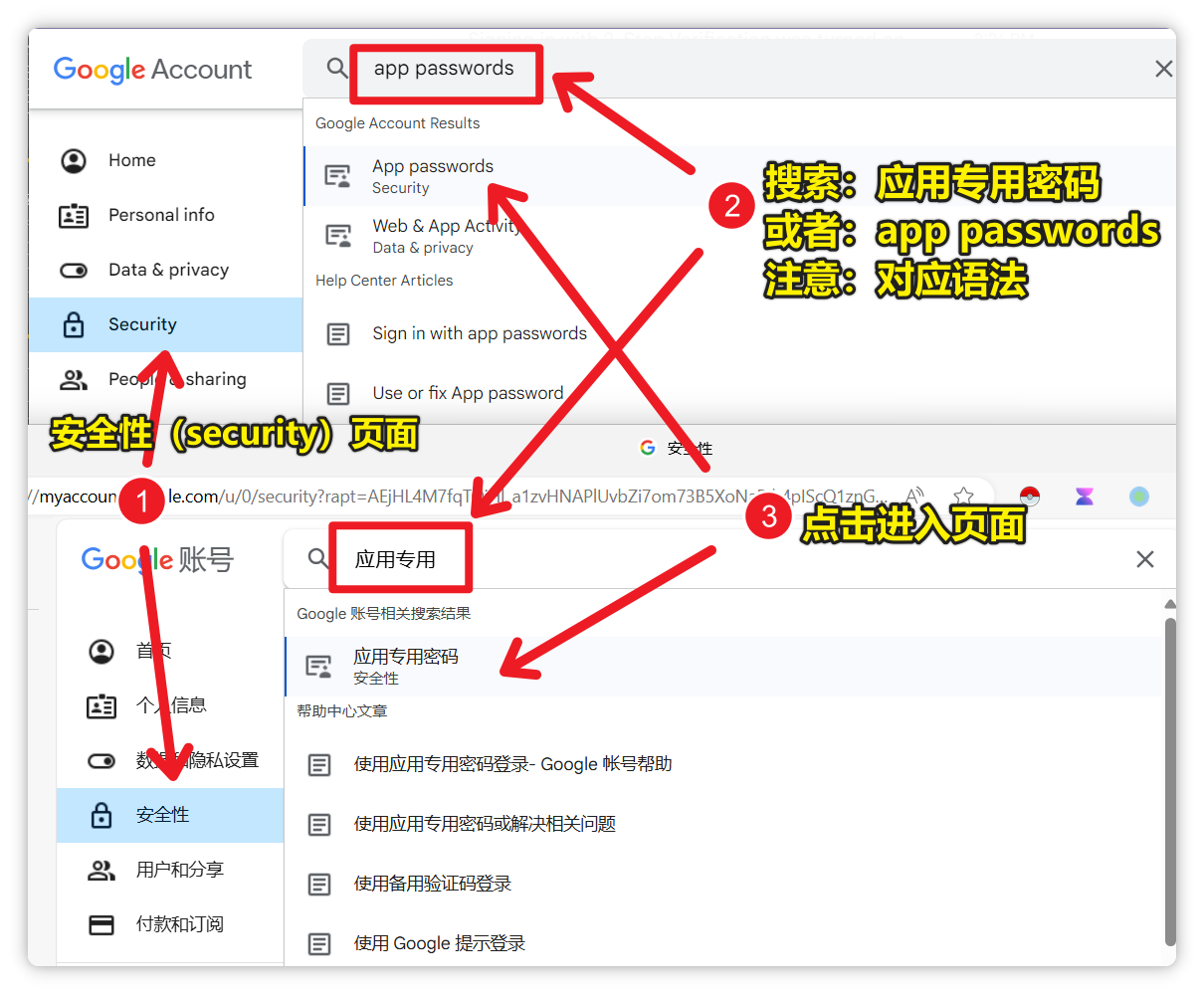
- Open the App passwords page.
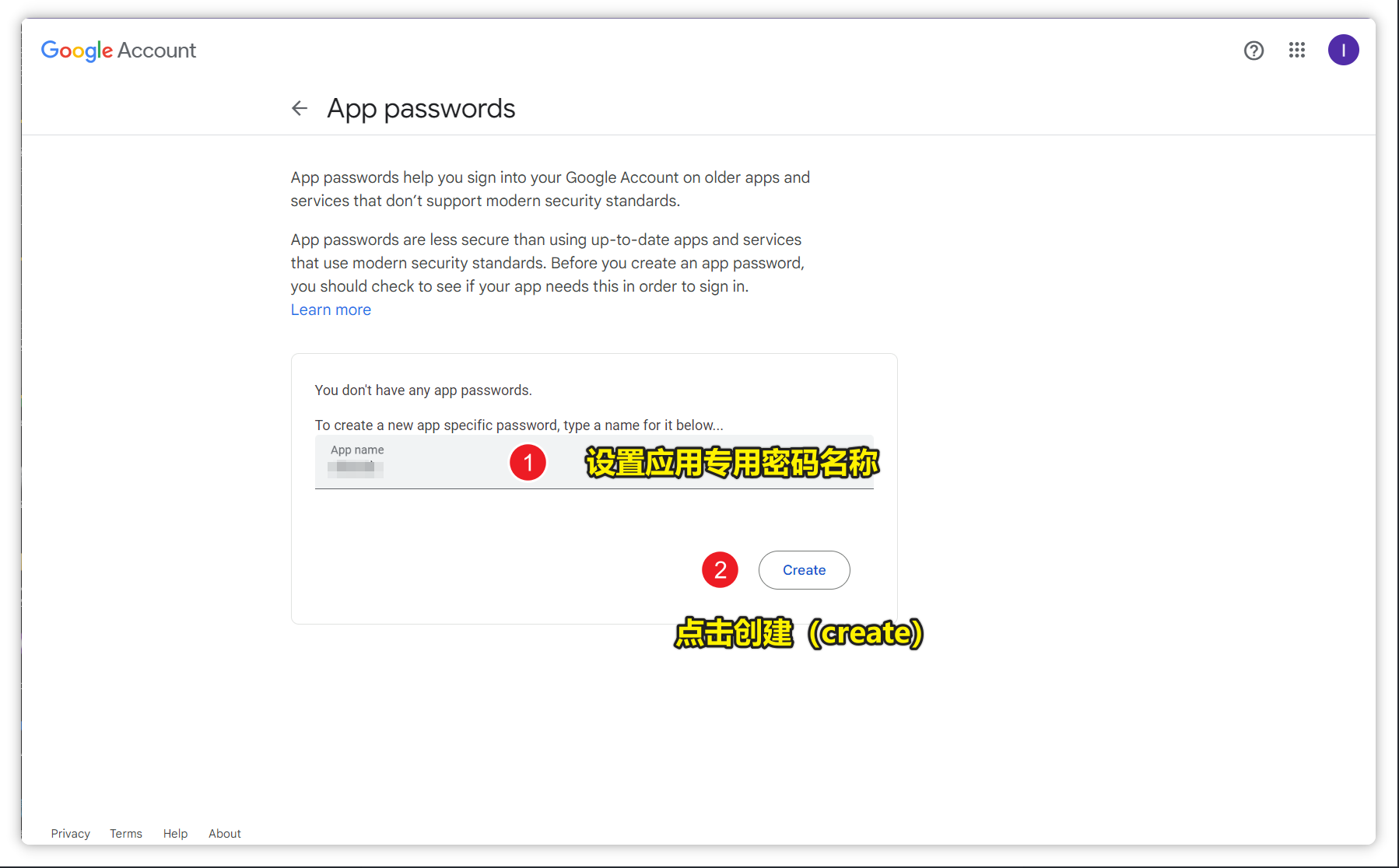
- Create a password for HerdPrint and copy the generated 16-character app password.
- In HerdPrint, select Gmail, enter your complete Gmail address and the app password, then test the connection.
The preset uses imap.gmail.com on port 993 with SSL/TLS. Some organization-managed, Advanced Protection, or otherwise restricted accounts may not offer app passwords. In that case, use an account that supports the required method; HerdPrint’s OAuth flow is not available in this release.
Other Email (Custom IMAP)
Choose Other Email when your provider’s IMAP settings are known but there is no HerdPrint preset. Enter:
- Email address
- Username, if it differs from the email address
- Mailbox password or app password
- IMAP server and port
- Security mode: SSL/TLS, STARTTLS, or None when the provider explicitly requires it
Use Test Connection before saving the account. Ask your provider for its current IMAP host and security settings instead of guessing them.
Security notes
HerdPrint does not save message bodies or modify, delete, or send mail. Remove a connected account from HerdPrint Settings when you no longer want its credentials and local import history retained. Never share a mailbox password, app password, authorization code, or private invoice in a support request.